 Nostr VPN
Get connected
Your first private network.
Connect two devices without a company account or a payment. You will need Nostr VPN on both devices and permission to enable their VPN connection.
Connect two devices
Install Nostr VPN on both devices.
Choose your platform from Downloads. Open the app and allow the operating system’s VPN or background-service permission when prompted.
Create a network on the first device.
Choose Create Network and give it a name. This device administers the network. Enable the VPN connection.
Request to join from the second device.
Choose Join Network. Share its join-request link or show its QR code to the administrator on the first device. Menu placement varies by platform.
Approve the second device.
On the first device, open the network’s device controls and add the join request by pasting its link or scanning its QR code. Confirm that it is the device you intend to add, then approve it. Keep both devices online while approval completes.
Use the private connection.
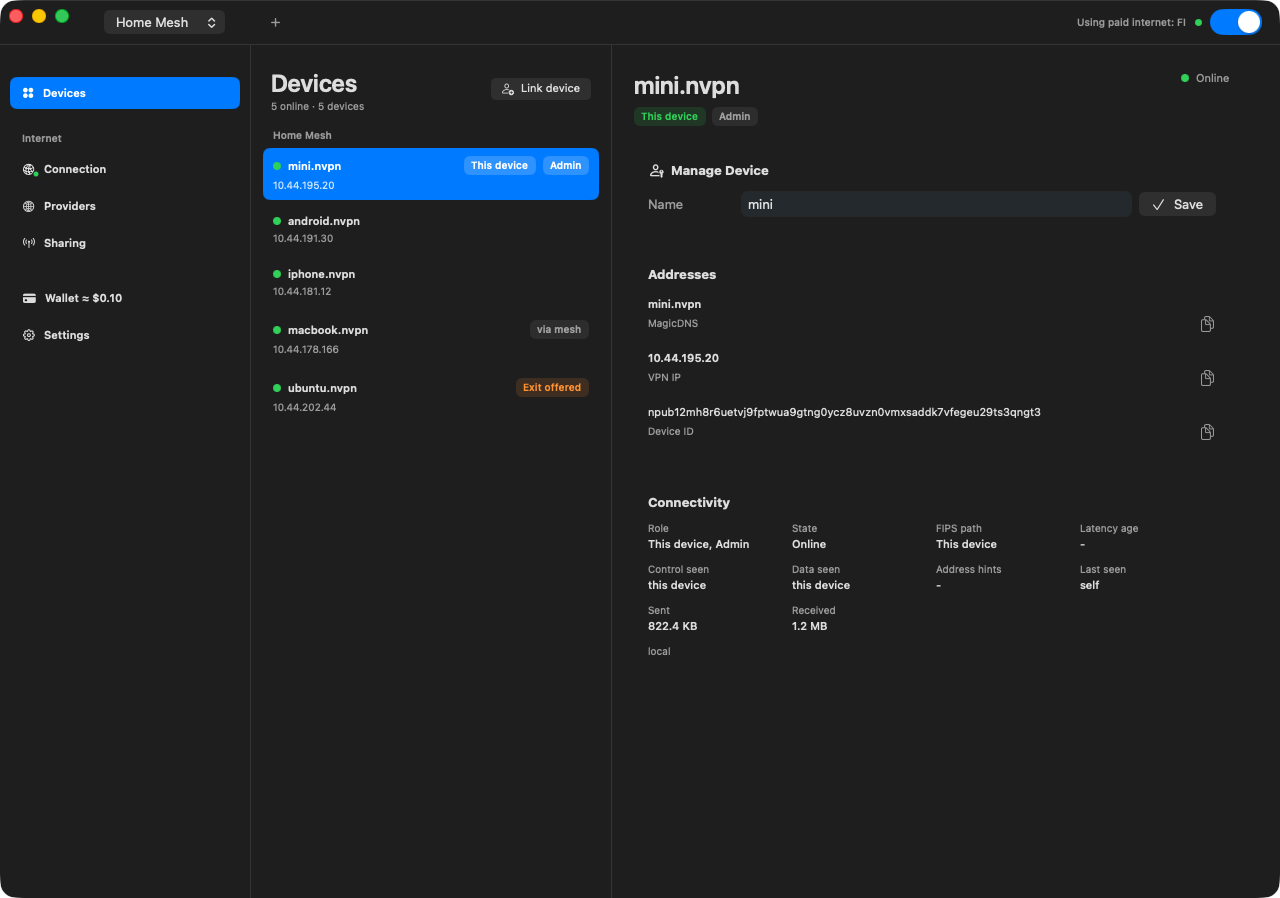
Enable the VPN on the second device. Check that both devices appear connected in the same network. Open a service on the other device using the VPN address shown in its details, or its
.nvpnname. The service must be running and allowed through that device’s firewall.
Joining a private network does not automatically send your general internet traffic through an exit. Select an Internet source separately if that is what you need.
Choose the right installer
- macOS: the packaged app targets Apple Silicon. Intel Macs require a source build.
- Windows and Linux: desktop packages target x64. Linux CLI archives also cover arm64.
- Android: the APK targets arm64. Available through Downloads or Zapstore.
- iOS: install through the App Store or TestFlight. Private networking and configured exits are supported; paid exits and the Cashu wallet are not included.
See current downloads and the release’s installation notes. QR camera support varies: Windows supports image import, and Linux camera scanning requires zbarcam.
Prefer the command line?
Install the nvpn CLI from the homepage’s CLI options. On the first device:
nvpn init
DEVICE_ID='<paste nostr_pubkey from nvpn init>'
nvpn set --device "$DEVICE_ID"
nvpn start --daemon --connect
On the joining device:
nvpn init
nvpn start --daemon --connect
nvpn join-request
Approve the printed join request in the administrator’s Nostr VPN app. Check the connection with nvpn status; stop it with nvpn stop. Commands follow the v4.1.17 quickstart.
If the connection is not working
- Confirm VPN permission is enabled on both devices.
- Check that both devices have the intended network active and that the join request was approved.
- Try the displayed VPN address to distinguish a naming issue from a connection issue.
- Check the destination service and firewall, then the app’s connection diagnostics.
Get support with app versions and the observed error. Never share private keys or wallet secrets.
Explore from here
Read the security model, compare Nostr VPN with Tailscale, or learn how to try paid VPN access on supported platforms.